Creating a new campaign
To open the campaign page, click on the megaphone icon on the blue app navigation bar on the left side of the screen.
Click on the Add button on the top right corner of the sidebar.
First, choose a campaign name. This is for purely internal purposes. You'll see this name in campaign listings and reporting. Next, you select a messenger channel where the messages will be delivered to.
Name: A name for this campaign
Where to send: This is the messenger channel from which the campaign will send messages
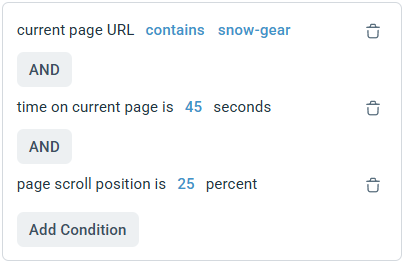
This field allows you to setup certain rules and situations dictated by user behavior that will trigger the campaign message to be created for a particular messenger session.
Display conditions: Conditions that need to be met for a message to be sent. Our flexible condition editor allows you to fully customize which behaviors should lead to triggering the message.
Start date: When the campaign will start triggering (even if it is already active)
End date: When the campaign will stop triggering (even if it is already active)
Learn more about scheduling campaigns here.
Then there are fields controlling what the message looks like:
Title: The bold title at the top
Body: The main body of the message
Image: An image to show alongside the message
Action: This represents a button and what to do when its clicked
While editing your message and actions, a preview is shown to the right to help you visualize how it would appear to the customers.
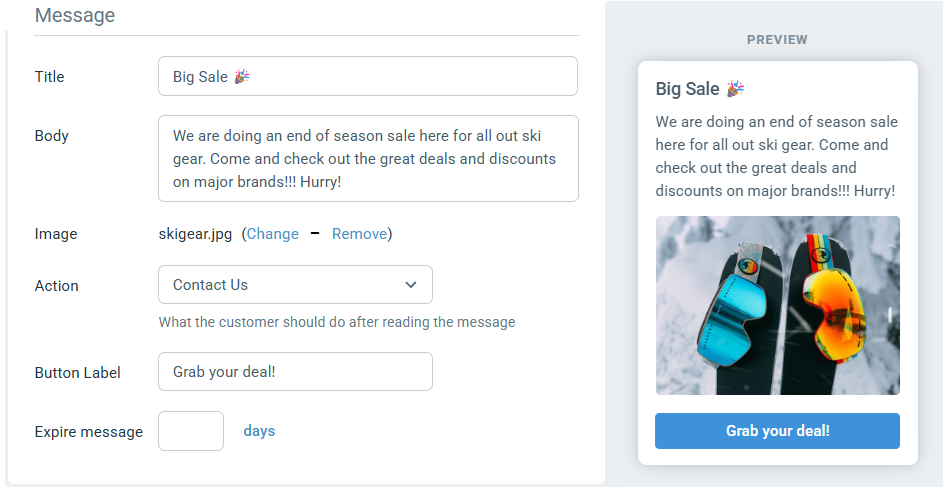
The following actions can be configured:
No Action: Don't show any button or action. Message can only be read and dismissed.
Go To URL: Open a specific web page in a new browser tab
Search Knowledge Base: Open messenger, and search the knowledge base for a pre-configured phrase
Open Messenger: Just open messenger. It will go to its configured start page.
Contact Us: Open messenger as if Contact Us button was clicked. Live chat if someone is online, contact form otherwise.
Note: For any action, you can specify a custom call-to-action label for the button. The colors for the button follow the theme colors of the selected Messenger channel.
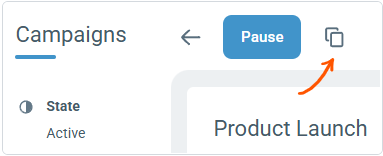
When viewing a campaign, the clone icon at the top will create a new campaign with duplicates of the campaign assets and logic.