

Customize Enchant AI Per Inbox
For each inbox, you can configure the writing style for AI Writer and AI Drafts.
From the bottom left corner of the screen, click the cog icon on app navigation bar.

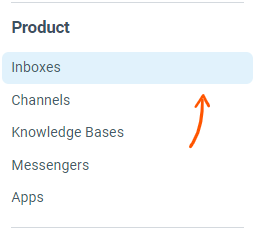
From the sidebar on the left, click on Inboxes option under the Product section:
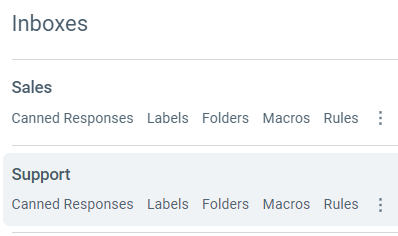
Then, click on the name of the specific inbox you're trying to setup from the inbox listing on the right.
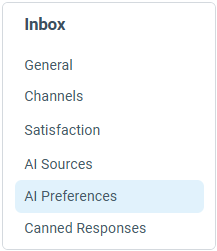
From within the inbox settings page, click AI Preferences from the sidebar.
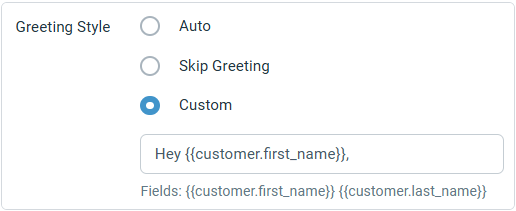
You have the following options for a greeting style:
Auto: means that Enchant AI will choose an appropriate greeting style
Skip Greeting: use this option when you want to keep it short, for example for messaging type tickets such as SMS
Custom: this option allows you to specify a particular greeting style, with the following placeholders
{{customer.name}}: Full name of the customer (from customer profile)
{{customer.first_name}}: First name of the customer (from customer profile)
{{customer.last_name}}: Last name of the customer (from customer profile)
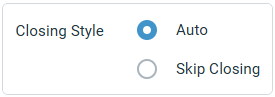
You have the following options for closing style:
Auto: means that Enchant AI will choose an appropriate closing style
Skip Closing: use this option when you want to keep it short, for example for SMS tickets. You can also use this option if your team already uses personalized signatures for this inbox that are automatically added to each message.
Enchant AI is also aware of language specific spellings when generating text for message translations, AI Writer and AI Drafts.
Language can be specified for the inbox from the general settings page.