

Managing WhatsApp conversations in Enchant
Enchant sends and receive messages through channels. We have a WhatsApp channel that turns WhatsApp conversations to tickets in your Enchant inbox.
WhatsApp has multiple services: WhatsApp App, WhatsApp Business App, WhatsApp Business Platform. A phone number can only be on one of those services at any given time. For additional information, read this blog post.
Enchant is a Meta Tech Partner and is authorized to send and receive for your WhatsApp number via WhatsApp Business Platform.
You can authorize Enchant to connect to WhatsApp Business Platform via Facebook Login Embedded Signup.
During this process, you will either select or create:
Business Portfolio: The business in Meta Business Suite that is connected to the WhatsApp Business Account and phone number.
WhatsApp Business Account: This is responsible for billing (for paid WhatsApp messages) and also holds any message templates.
WhatsApp Business Profile: This represents the phone number any other information that is seen by the customer (like business name).
Notes:
Don't worry if you get stuck at a step. You can run through it multiple times until you succeed.
Do not use temporary "555" phone numbers provided by Facebook. Use a real phone number you control.
If SMS on your numbered is routed through a cloud provider like Twilio, you may not receive the verification code. In that case, use phone-call based verification.
To start the process:
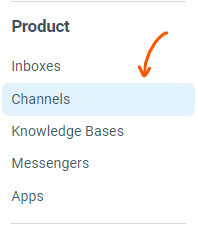
Go to the Settings and click on Channels from the options under Product section of the sidebar.
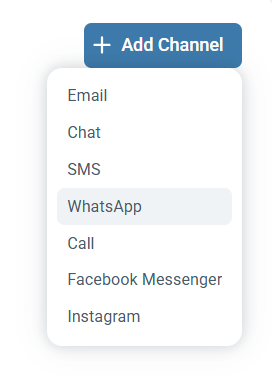
From the channel page, click on Add a Channel button on the top right and select WhatsApp from the list.
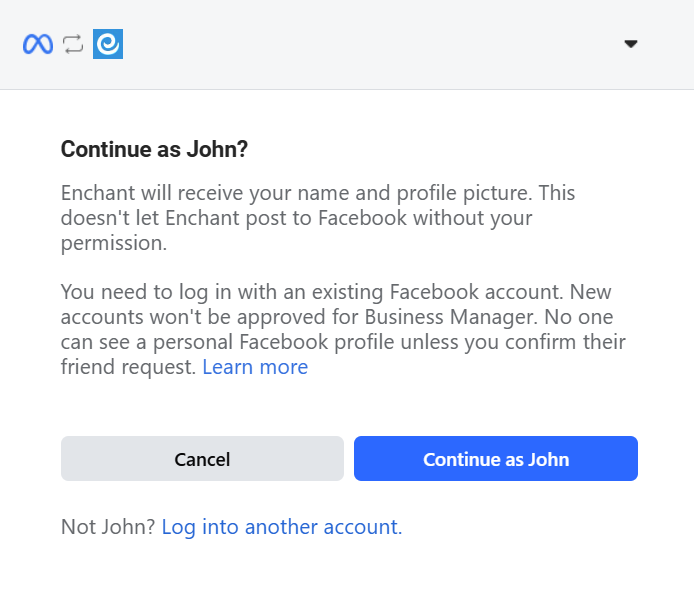
Click the Login with Facebook button.
On the popup screen, click Continue.
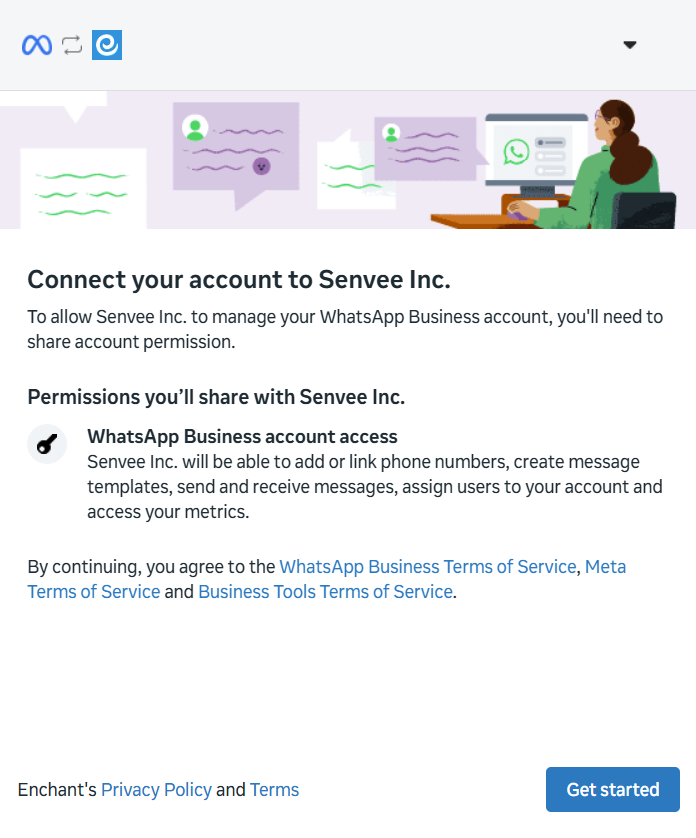
On the initial permission screen, click Get Started.
Select or create your Meta Business Portfolio. This represents your business and its assets in Meta Business Manager.
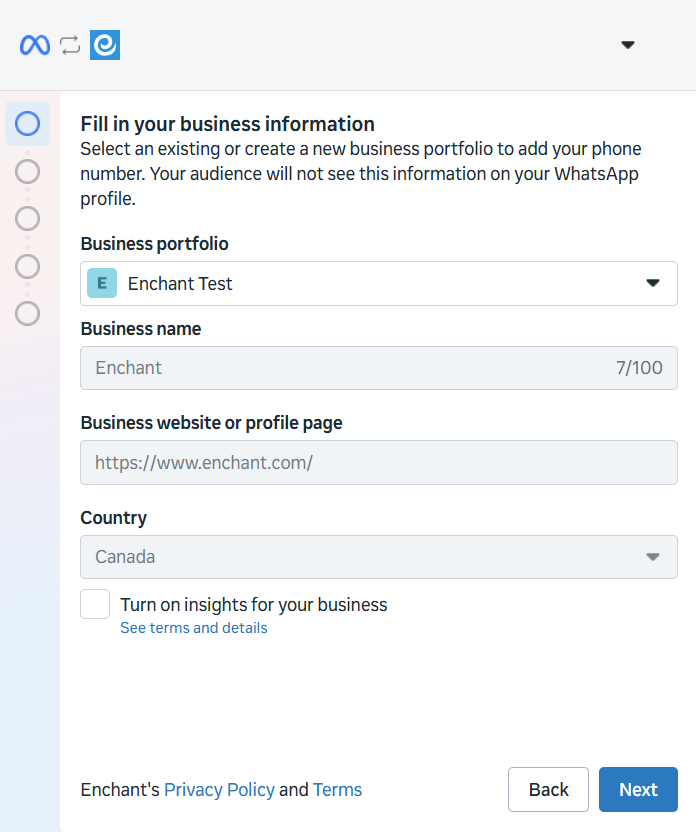
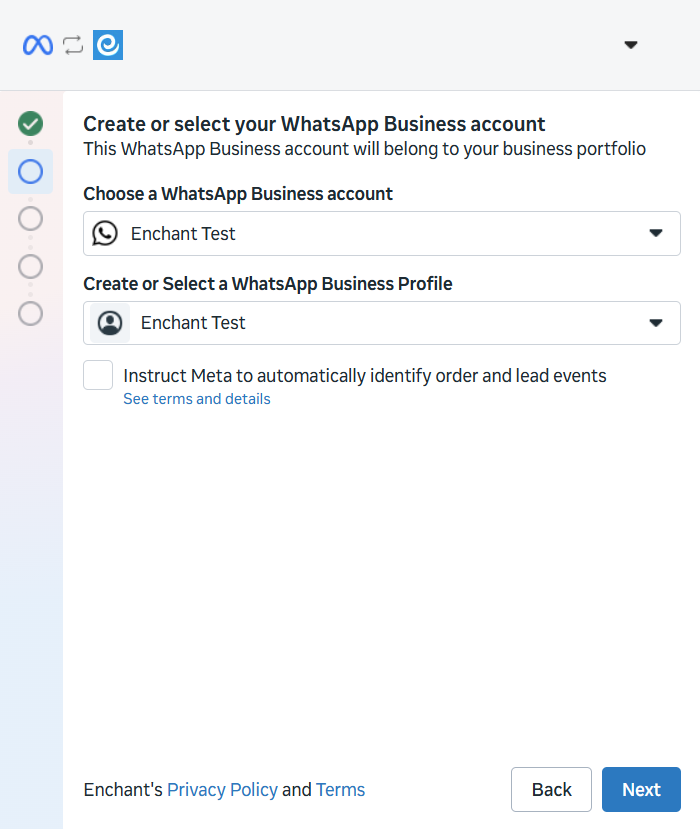
Select or create your WhatsApp Business Account. This holds your WhatsApp numbers and message templates. It is holds payment details if you will be sending any paid WhatsApp messages.
Select or create your WhatsApp Business Profile. This represents a single phone number and any associated details that will be visible in WhatsApp (i.e. business name, location, etc). If you are creating a phone number, please use a real number and not one of the temporary 555 numbers that Facebook provides.
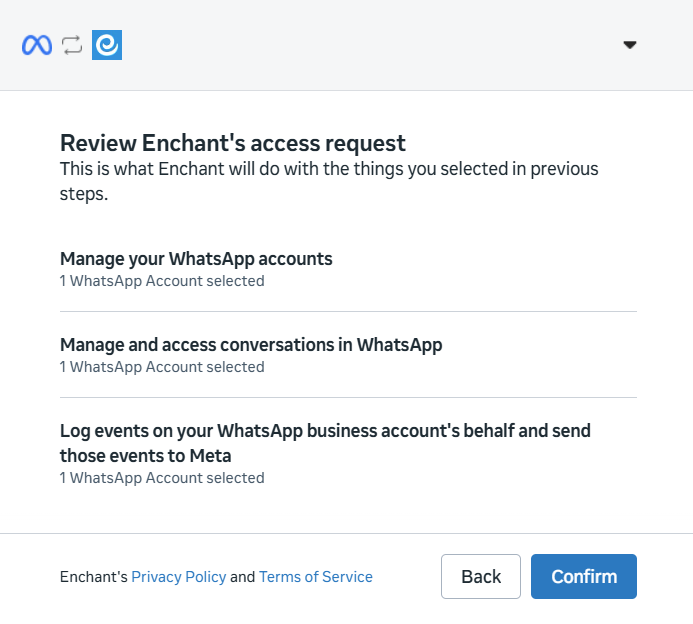
You should see 1 WhatsApp account selected. Click Confirm.
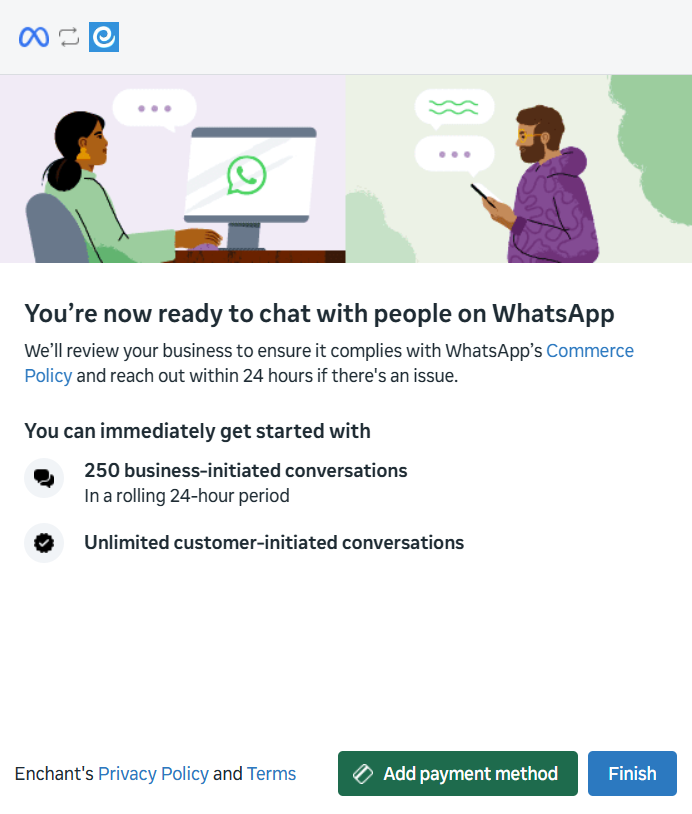
Finally, click Finish. If you will be sending paid WhatApp messages, you can add a payment method at this point by clicking Add payment method or you can also add it later from within WhatsApp Manager.
At that point, you will get to Enchant's channel setup screen. If we're showing your phone number, then you're almost done.
The last step is to provide the six-digit PIN you have associated with this phone number. If you've never setup a PIN before, then whatever value you provide will be setup as your future PIN. If you cannot figure out your PIN, reach out to us or assistance.
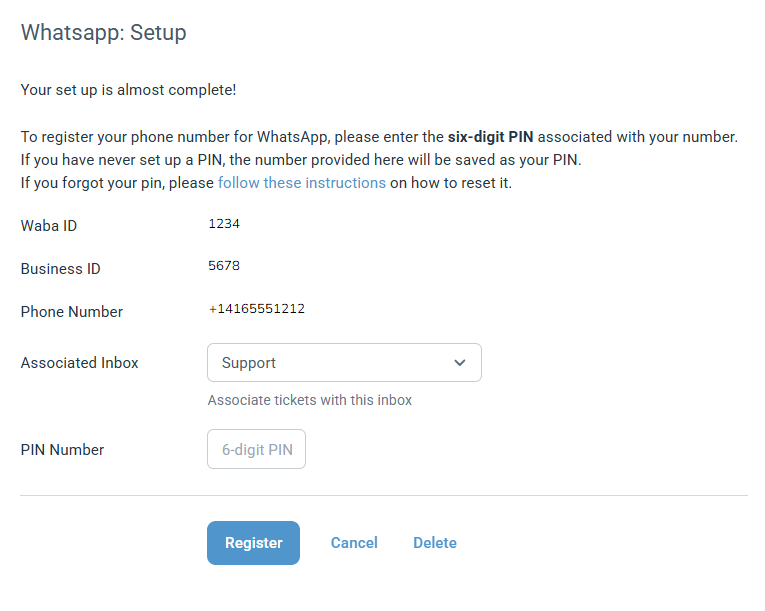
If you see a channel configuration with a Save button, you're all done. Try sending a message from your personal phone to your WhatsApp Business Platform phone number that should now be flowing to Enchant.
Can we still use WhatsApp mobile apps or WhatsApp web?
WhatsApp has three tiers: Personal, Business and Business Platform (API).
A number can only be linked to one of those tiers at a time.
Third parties like Enchant can only work with Business Platform (API). WhatsApp provides no web or phone interface for Business Platform (API) - it's 100% driven through the interface provided by Enchant.
So a WhatsApp number managed by Enchant cannot be accessed from WhatsApp mobile apps or WhatsApp web.
Are there any additional costs to use WhatsApp through Business API?
While Enchant does not charge extra fees, WhatsApp does. Learn more about WhatsApp Business Platform pricing.