

Managing multiple chats using live panel
The live panel enables users to manage live tickets such as active phone calls or live chats from the Messenger. The panel shows a list of live tickets that are relevant to the user so they can quickly see the call queues or juggle between chats.
You can access the panel by clicking the live button on the top right corner of the screen.
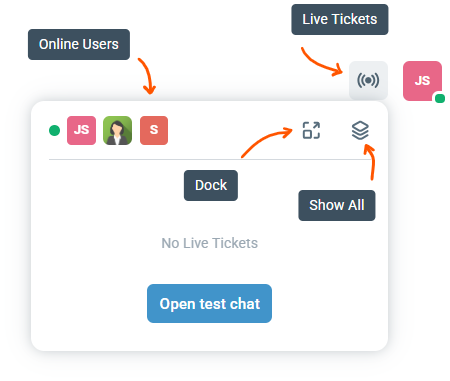
On top bar of the panel:
Online Users: the live panel shows a list of users on your team that are online to handle live tickets.
Show All: By default, the list of tickets shown include all new (unassigned) live tickets ringing in your inboxes and any live tickets you are participating in. You are considered a participant of a live ticket if the ticket is assigned to you or if you're joined into the chat or call. This button allows you to see all live tickets across all of your inboxes.
Open test chat: When there are no live tickets, the test button is available. Clicking it opens a new tab where the Enchant Messenger loads in test mode, so you can see what your customers experience when they interact with the messenger on your website.
Docking the panel
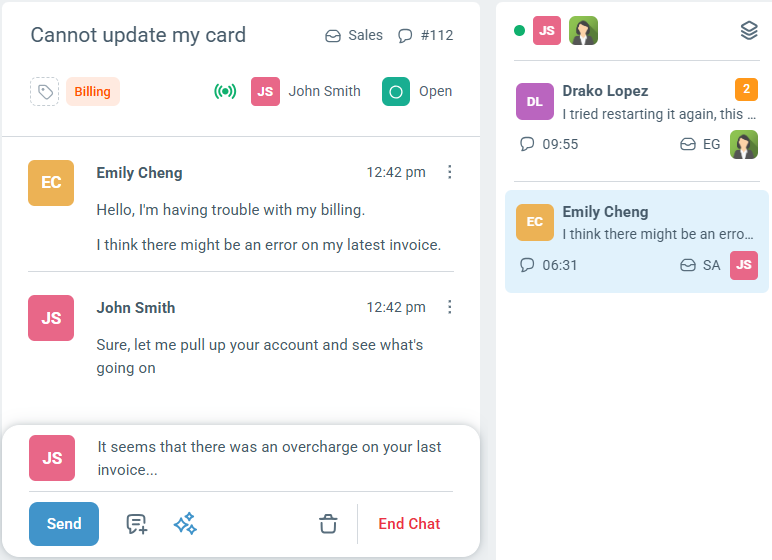
The live panel opens up in a dropdown by default and can be docked as a sidebar by clicking the Dock button. Once docked, the panel stays open in sidebar to the right side of a ticket or folder listing. When you are finished managing live tickets, you can click the live button again to undock the panel.
You can also change your user preferences to automatically open live panel in docked state anytime you're handling a live ticket.
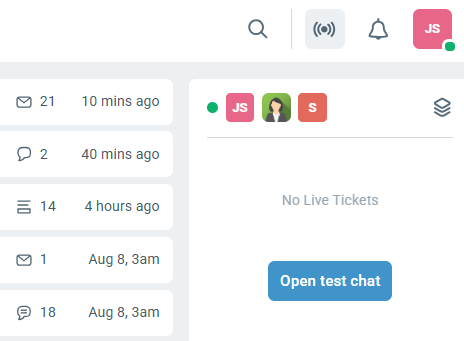
When a new live ticket comes in, the live button alerts all online users by plays a ringing sound and animating.
The ringing ticket also shows up on top of the list with a red pulsating circle to help agent get to the ticket fast.

If you are participating in a live chat ticket and go away from the ticket page to look up information or do another task, the chat tracks any unread messages on that ticket.
If there are no ringing tickets, and there are any tickets with unread messages, the live button will be shown in a yellow color. The ticket summary in the live panel also shows a yellow counter so you can quickly identify which chat needs your attention.
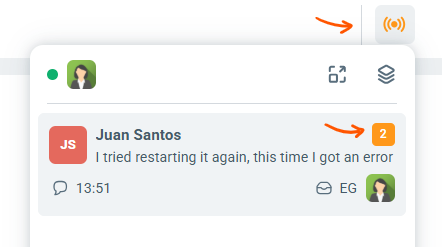
Each live ticket in the panel shows important information at a glance like the customer, last message on the thread, user who's assigned to the chat, unread message count and inbox of the ticket. All live tickets also show a counter for the duration of the live chat or call.

Clicking on a ticket from the panel opens the full ticket view. The opened ticket stays highlighted in the panel so you can see which of the live ticket you're on when juggling between multiple tickets.
The maximum number of live tickets that can be managed at the same time are based on different factors:
For phone calls, this is determined by the queue size under Call Center settings for an inbox.
For live chats, this depends on total number of concurrent chats specified in User Preferences for each online user.