

Chatting with your customers
Once Enchant Messenger is installed on your website and live chat is enabled on the Messenger settings, your team can start accepting live chat requests from your customers via Messenger.
To accept live chat a user needs to make themselves online in Enchant. Learn more about how to manage your availability for live chats and calls here.
A ticket is created in Enchant for each live chat request. Users can then respond to the chat ticket and have a conversation with the visitor on your website.
When a new chat request comes in, you will hear a ringing sound and the live button on the top right corner of the screen will be red and animated.
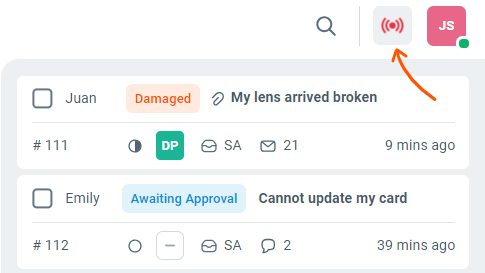
Click on this live button to open the live panel, and then click on a live chat. A new unassigned chat will show a red pulsing icon.
The new chat ticket will also show up in your folders (provided it meets the folder's conditions) with a live icon in red.
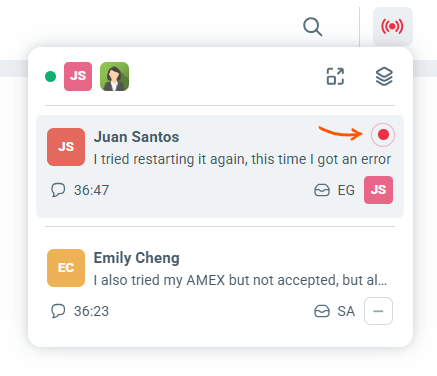
Clicking on this ticket from a folder or from the live panel will display the chat ticket.
To start responding to the chat, click Join Chat button from the bottom of the ticket.
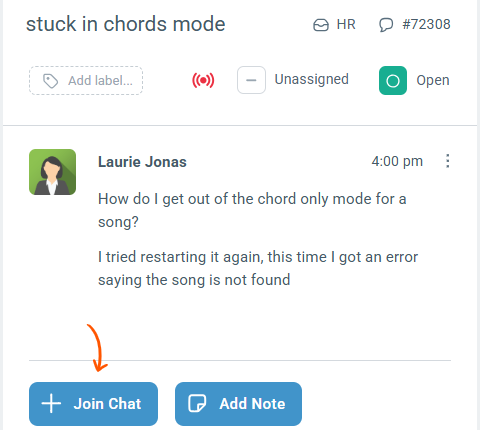
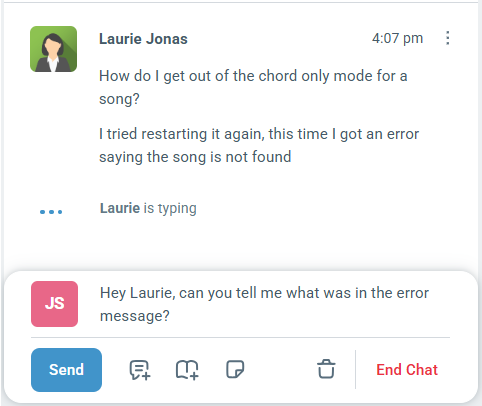
Once joined, you can chat with the customer using the compose window similar to any other ticket.
The ticket reply composer brings many of the same features such as auto-saving drafts, canned response insertion, KB link insertion, AI Writer, etc. Some key behaviors are modified to enable fast actions during an ongoing live chat:
Messages are sent when "enter" is pressed.
Undo send is not available.
Typing notifications are shown on both user and customer side.
Reply box stays open until the chat ends.
By default, new live chat requests will notify users by playing a ringing sound. A sound is also played when you send or receive messages on a live chat.
Learn more about how to change user preference for chat sounds here.
You can also add private notes to share information with your team while the chat is in progress by clicking the note button in the compose window's action bar.
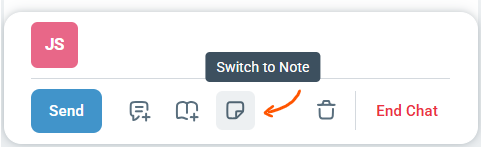
You can end a live chat by using the End Chat button at the bottom right corner of the compose window. Only a joined user can end the chat. This action ends the conversation immediately and notifies the customer with a "Chat has ended" message.
The customer can choose to start a new chat from the Messenger if they wish to seek further help or follow up later by replying to the chat transcript.

Note: The Trash icon simply discards the draft message and closes the compose window. It does not end the live chat or remove you from the live chat.
When a chat ends, a transcript is automatically sent to the customer's email address associated with the Messenger. When the customer follows up on the chat transcript email, it creates an email ticket in Enchant so that you can continue the conversation over email.
Once a live chat is accepted by a user, the chat will continue on as long as messages are being sent. If no messages are sent for 30 minutes, the chat is considered inactive and is automatically ended by Enchant.
A live chat also ends when the customer and all users participating in the chat have gone offline.
By default, a new live chat rings all online and available users that belong to the receiving inbox. But if a new chat request is assigned to a specific user, via a rule or manual triage, it only rings for that user. If the assigned user doesn't accept the chat within 5 minutes, the chat ticket will get unassigned by Enchant so that someone else on the team can help the customer.