Sending replies using WhatsApp Message Templates
Pre-approved WhatsApp message templates are typically used by businesses to initiate conversations and send important, structured notifications to customers outside the 24-hour customer service window.
If you have set up a WhatsApp channel (a direct one, not one that's via via Twilio), you can use pre-approved WhatsApp message templates to send replies to customers from within Enchant interface.
To create and manage the message templates, please use WhatsApp Manager in Meta Business Suite.
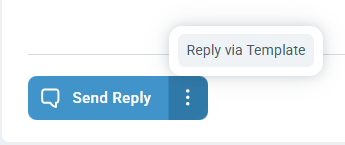
To use a message template to send a reply on a ticket, click the more button (dot menu) beside the "Send Reply" button at the bottom of the ticket and choose the "Reply via Template" option.
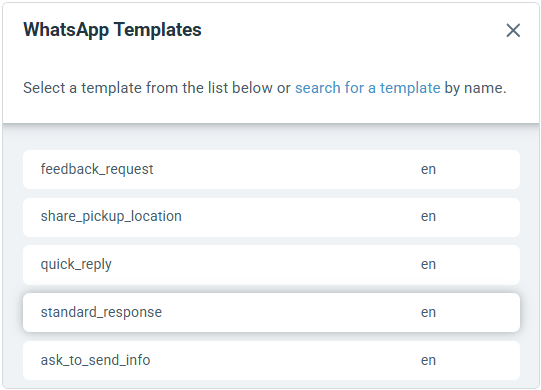
This will open up a pop-up window that shows all the approved message templates for the WhatsApp account associated with the ticket's channel.
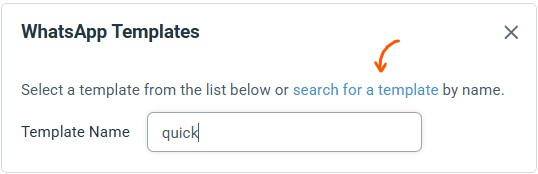
Note: You can also search for a specific template by name by following the steps below:
Click the "search for a template" link
Enter the template's name (partial names also work)
Press the enter key on the keyboard to search
You can then select the desired template from the list by clicking on it to proceed to the next step.
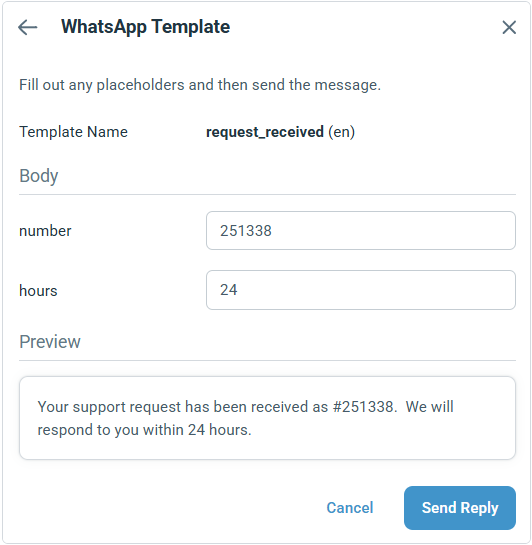
The next page provides input fields to fill out any placeholders in your template message.
It also shows you a preview of the what the final message will look like with all the values replaced based on your input. When done, you can click "Send Reply" to send the reply using this template message.