

Live chat collaboration and transfers
When you are helping a customer with a complex issue, you may wish to collaborate with another user or you might want to transfer the chat to another department. Enchant provides many flexible ways to do this so you can choose the one appropriate for your workflow and particular situation.
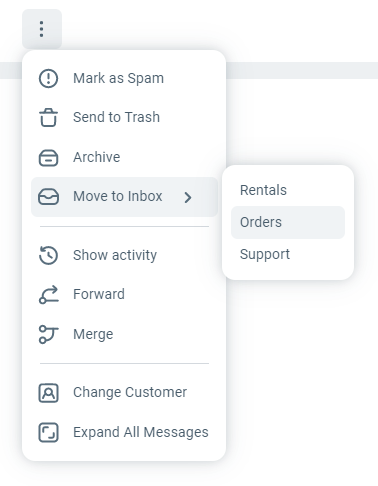
If you're dong triage manually or if the customer has another concern that requires transferring the live chat to another team, you can move the ticket to that team's inbox using the More menu from top action bar.
The live chat will ring the online users in that inbox.
To transfer a live chat to another user, you would use the user assignment functionality. You can only assign a live chat ticket to users who are online and available for chats.
This can be done in 3 ways:
Chat Assignment
Cold Transfer
Warm Transfer
Chat Assignment
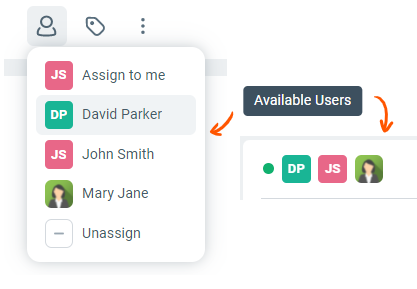
You can assign an incoming live chat request to another user by assigning the chat ticket to that user. You can use this option to transfer a chat without first accepting it.
When a chat ticket is assigned to a user, the ticket will continue ringing for just the assigned user instead of all available users of the inbox.
Cold Transfer
A cold transfer is done after you have accepted an incoming chat. In the case of a cold transfer, you transfer the chat to another user without talking to the other user first.
This can be done in Enchant by using the assign dropdown. When you assign the chat ticket to another user, the chat ticket will only ring for them.
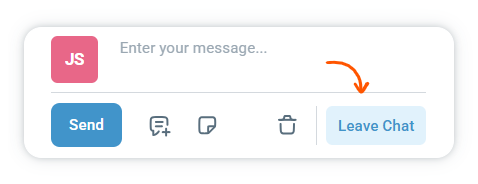
At this point, you would use the Leave Chat button in the compose window or at the bottom of the ticket (when compose window is closed) to remove yourself from the chat.
Warm Transfer
When transferring chats, there are times where you want to give a quick summary to the user before you hand the chat over to them. A warm transfer not only saves time for the your team but it also saves the customers form having to repeat their problems to multiple users.
To initiate a warm transfer within the inbox, follow these steps:
Assign the ticket to the user you want to transfer to. Enchant will start ringing that user and they will see a Join Chat button on the chat ticket.
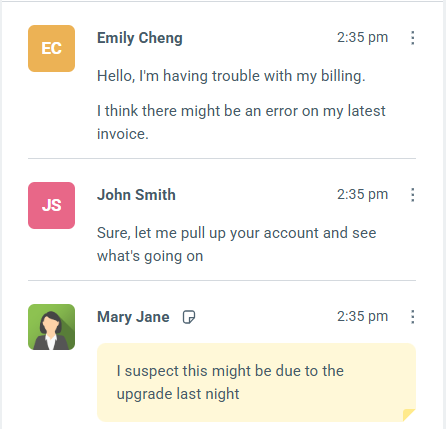
Add any private information that you wish to share with the new user by adding a private note.
Once the user join, they can read your notes or take over your draft response and continue the conversation.
Remove yourself from the chat by clicking the Leave Chat button.
Note: At this time you can only initiate a warm transfer between inboxes that you have access to.
You can also work collaboratively to help the customer if the situation requires it. Enchant has many built-in tools that you and your team can utilize to achieve this goal seamlessly.
Invite a user to a live chat: Assign the live chat ticket to another user so it rings them. Once they join, continue chatting with the customer together.
Real-time draft reply preview: Just like in a regular ticket, live chat tickets show you a preview of what the other user is typing in real-time.
Take over draft: If you're training a new user, you can have them write the initial response and then take it over (to polish it) before sending it to the customer.
Private notes: You can use private notes and @mentions to share information on the fly.
Note: You can see who is joined on the live chat by looking at joined users icons to the left of the ticket assignee.
For more details on how to accept and answer live chats, check out this article.