

Understanding the live chat interface
Just like any ticket in Enchant, a live chat ticket displays messages between your team and the customer.
In addition, it provides additional contextual information like what page the customer is viewing or if the customer has minimized the chat window or gone offline. Users see a notification whenever the customer is typing on the messenger.
You also see real time events about any participating team members, if they join or leave a chat.
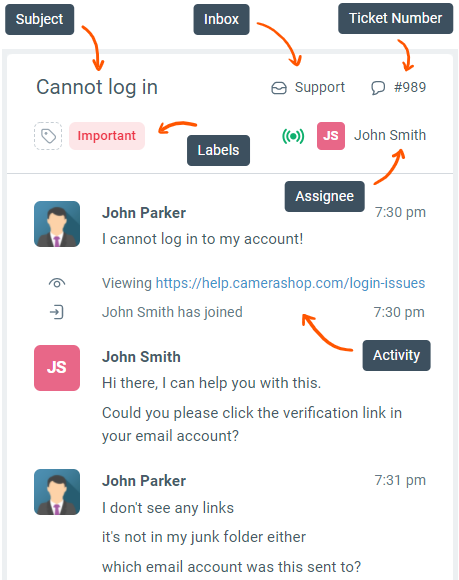
A customer using the messenger on your website can see when a user joins or leaves the chat. They can also see typing notifications when the user is typing a reply.
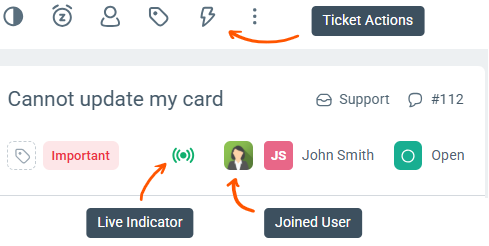
While the conversation is live, from the ticket action bar, you can:
change the subject
add or remove labels
set the state to closed if the customer concern is resolved or snooze the ticket to act as a reminder to follow up later.
assign the chat to another team member if they are online to transfer or collaborate.
follow a live chat
run a macro to perform pre-defined workflow actions
Using the More button, you can transfer the chat to another inbox.
The ticket header also shows a green live icon as long as the chat is live. If there are other agents participating in the live chat other than the assignee, an icon for each participant is also shown to the left of the assignee icon.
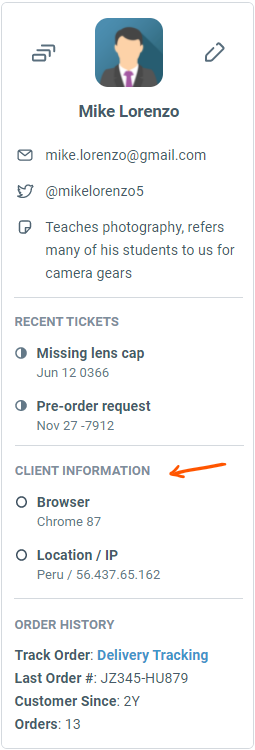
While chatting, you see the same sidebar that you know and love from the ticketing interface. This allows you to see the customer profile, previous communication history and any custom data configured to be retrieved from your internal systems.
For live chats, the sidebar also contains additional details about the customer's browser and location.
Learn more about how to accept and reply to live chats here.